Wednesday, 20 June 2018

How to increase system perfomance within 5 minutes


Now a days most of tech people facing system performance issues. we identify some solution for the issues


Step 1:

Goto temp and %temp% folder and clear the folder

(there are two temp folder available first one system temp folder and another one is user temp folder
user temp folder mentioned as %temp%)


Step 2:

Goto prefetch folder and clear the folder


Step 3:

Goto recent folder and clear the folder

Step 4: 

Goto windows folder and select C drive properties and perform the disk cleanup


Step 5:

Goto taskmanger and kill the not responding program

Step 6:

Check your Desktop folder size system in user folder if it is excess than KB's remove unwanted files and move to other folder and keep shortcut files only.( if it is excess than KB's definitily affect your computer speed and performance)

Step 7:

Unselect the unwanted apps in startup using msconfig


Step 8:

If these steps are not happen in your system Finally increase your RAM size for high performance.

How to disable windows 10 update


Solution 1


Step 1:

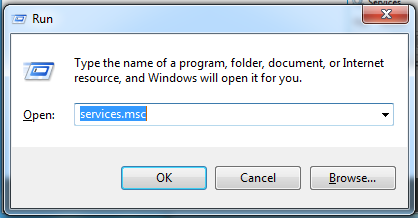
Press windows key + R at the time


Step 2:

Type services.msc and press enter

Step 3:

services windows will be open and scroll down and select windows update service


Step 4: 

Change the startup type and select disabled option and click ok


Solution 2


Step 1

Press windows key + R at the time

Step 2:

Type gpedit.msc and press enter

Step 3:

Select Administrative templates in computer configuration

Step 4:

Then select windows components and windows update

Step 5:

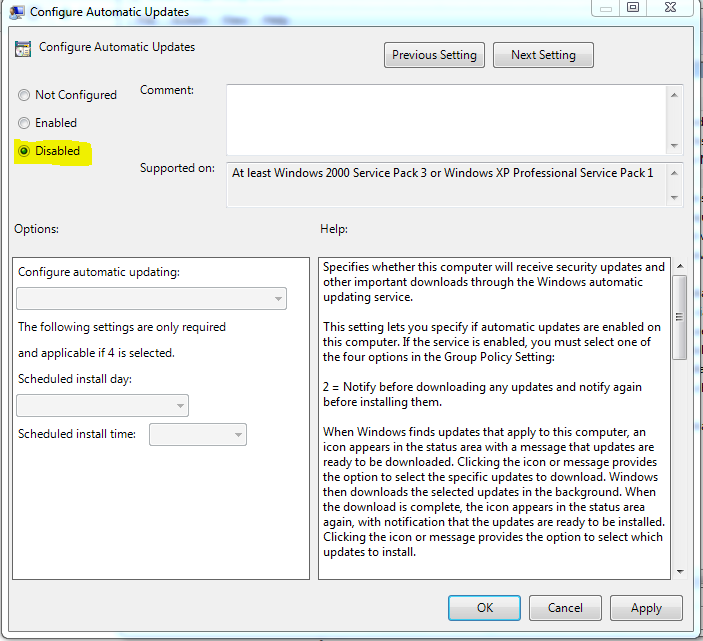
Then double click the configure automatic updates


Step 6:

Normally default option is not configured so now move on to disabled and click apply and ok


Monday, 30 April 2018

CRACK FORGET PASSWORD IN APPLE MAC


STEP 1:

Press the power button and holding down Command + R. The Mac will boot into Recovery mode.

STEP 2:

When you see the load bar appear you can let go of the keys. It may take a few minutes to load.
Select Disk Utility and press Continue.

STEP 3:

Choose Utilities > Terminal.

STEP 4:

Enter the command in terminal resetpassword  and press Return.

STEP 5:

Select the volume containing the account (normally this will be your main hard drive).

STEP 6:

Choose the account to change with Select the User Account.

STEP 7:

Enter a new password and re-enter it into the password fields and Click Save.

STEP 8 :

A warning will appear that the password has changed, but not the Keychain Password. Click OK.

STEP 9:

Click Apple > Shut Down.

STEP 10:

Now start up the Mac. You can log in using the new password.

Courtesy : macworld

Sunday, 22 October 2017

How to Fix a BCD ERROR 'Boot Configuration Data File is Missing'


Step 1:

Insert your bootable os media to Laptop or Computer

Step 2:

Enter to the installation mode and click next.

Step 3:

Select repair your computer option left down side corner of the page


Step 4:

Select trouble shoot option and then select advanced option

Step 5:

Select the command prompt and type the following commands


x:\Sources> Bootrec /fixmbr
x:\Sources> Bootrec /fixboot
x:\Sources> Bootrec /scanos
x:\Sources> Bootrec /rebuildbcd

Select the option A for all

Step 6:

Type Exit and select continue option.


Saturday, 22 July 2017

How to config Login page in phpMyAdmin


Step 1:

Create new user in phpmyadmin or use the already created user

Step 2:

Go to phpmyadmin folder in xampp or wamp

Step 3:

Open the config.inc.php and check the authentication type information

Step 4:

Change the authentication type value 'config' to 'cookie'

$cfg['Servers'][$i]['auth_type']  = 'config';

to

$cfg['Servers'][$i]['auth_type']  = 'cookie';

Step 5:

Just refresh the phpMyAdmin page and now showing the login page


Friday, 21 July 2017

Flush DNS


Most operating systems and DNS clients will automatically cache IP addresses and other DNS results, this is done in order to speed up subsequent requests to the same hostname.

Step 1:

Press the start key and simply type the cmd

Step 2:

Right click on Command Prompt and click Run as administrator

Step 3:

Type the following command

c:\>ipconfig /flushdns


Step 4:

Type the exit command. Now check and refresh the webpage.

Wednesday, 21 June 2017

How Reset SA password in MSSQL Server


Step 1: Stop the sqlserver services using sql server configuration manager


Step 2: Select the sql server and click the properties and select the advanced tab


Step 3: Change the startup parameter in sql server properties. Add the -m value in front of
            existing values.


Step 4: Start the sqlserver services. Now sql server running single user mode 

Step 5: Start the CMD prompt and enter the 'sqlcmd' command

Step 6: Create a New user in mssql, Enter the following commands.

           CREATE LOGIN username WITH PASSWORD = 'password'
           GO
           sp_addsrvrolemember 'username','SYSADMIN'
           GO

Step 7: Stop the sqlserver service again for change the startup parameter values
    (remove the -m values in startup parameter)

Step 8: Start the sql services again using created login

Step 9: Now go to security option and change the SA user values in sql server

Step 10: Now use the sa user.