Tuesday, 28 February 2017

How to install Joomla in windows


Joomla is an open source content management system which based on PHP and MySQL.

Step 1:

Download the XAMPP installer package at  http://www.apachefriends.org/en/xampp.html

Step 2:

Run the installation file as you do with regular software and follow the step by step instructions.

Step 3:

Open “XAMPP Control Panel Application” and start “Apache” and “MySQL”.

Step 4:

Browse the localhost/phpmyadmin/

Step 5:

Create a new Database for joomla and create username and password for particular Database

Step 6:

Download the joomla from official site link
https://downloads.joomla.org/

Step 7:
Create a new folder in htdocs(eg: joomla30) and extract the downloaded pack to that particular folder

Step 8:
Go to the URL localhost/joomla30 and the continue following instructions

Step 9: Joomla admin panel configuration
i)  Select the languages
ii) Enter the name of your site
iii)Choose the status for access your site(If u need access only in online click Yes otherwise select No)
iv) Enter your valid e-mail ID
v)  Enter the custom username and password and Re-enter your password

Step 10: Database configuration
i)  Select Database Type
ii) Hostname default is 'localhost'
iii)Enter username and password for particular DB
iv) Database is already we created like joomla30
v)  Select the prefix of folder in Joomla

Step 11:
Now completed the configuration then you will get the window like this


Tuesday, 10 January 2017

How To install java and set environment path


Step 1:

First go to download the java pack using this link.

http://www.oracle.com/technetwork/java/javase/downloads/jdk8-downloads-2133151.html

Step 2:

Download the pack and right click to install, default path location is

"C:\Program Files\Java\jdk1.8.0_xx"

Step 3:

Now go to Advanced system settings in control panel and select advanced tab

Or

Select Windows key + break key and select advanced system setting in left side panel


Step 4:

Now select environment variables in advanced tab


Step 5:

Click new in local system variables and then type,

variable name : path

variable value : c:\Program Files\Java\jdk1.8.0_xx\bin;


Now click OK button and close the system variables.

Step 6:

Now you have to check "Javac" command in command prompt if u get messages without error now java is working fine.


Sunday, 1 January 2017

How To Import or Restore MSSQL(.BAK) DB


MS SQL is short for Microsoft SQL Server. It is a relational web hosting database that is used to store web site information like blog posts or user information. MS SQL is the most popular type of database on Windows servers. It is not free but it has many advanced features that make it suitable for businesses.

Step 1:
Open the SQL studio management


Step 2:
Enter your login credentials.


Step 3:
Select database option in your left panel then right click the database for create new database.


Step 4:
Enter a new database name for create DB. (eg: Database name is TEST) then Click next.


Step 5:
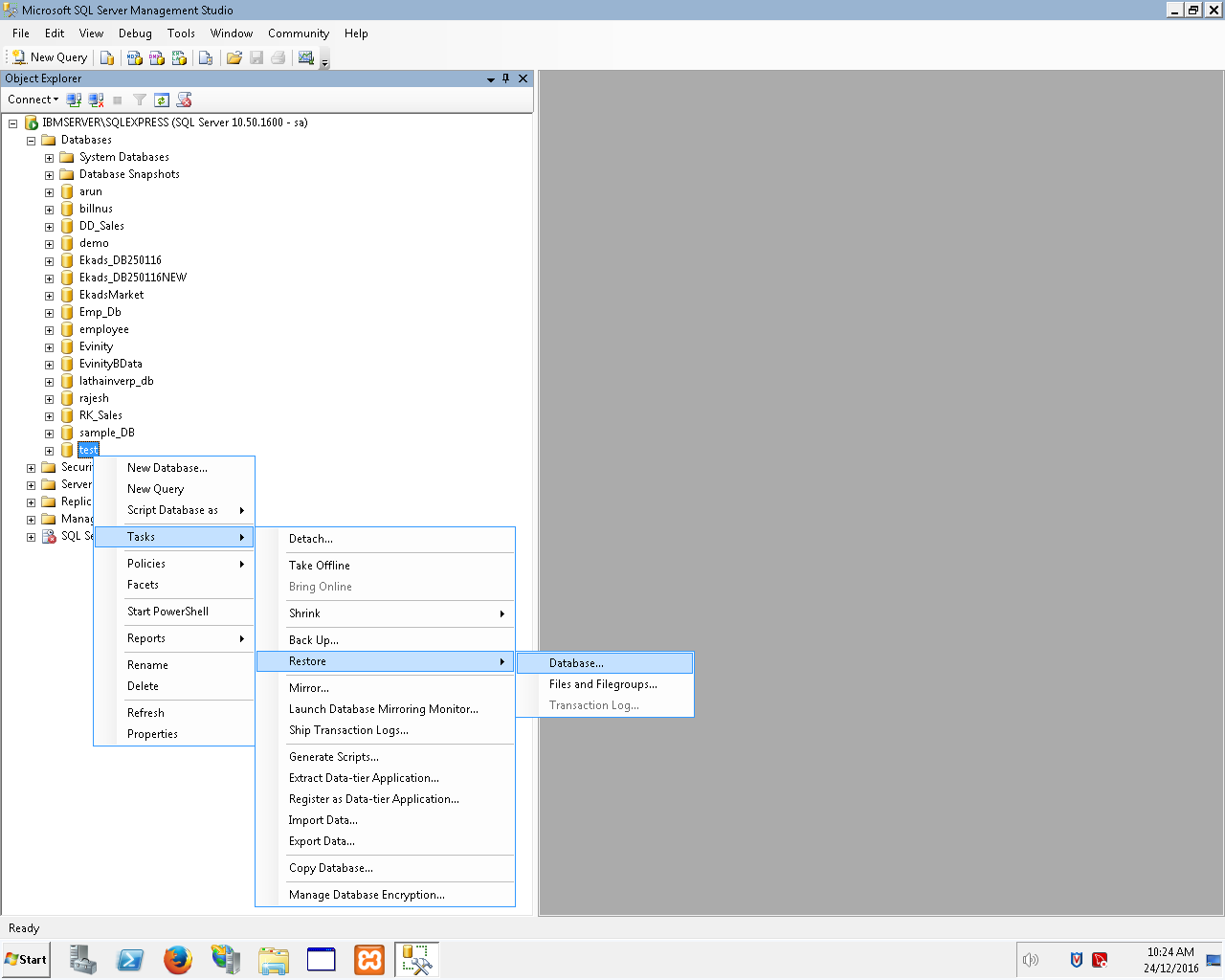
Now right click the test DB in left side panel then select task in sub menu and then select restore then click restore to database.


Step 6:
In windows, Select the radio button for restore the database from device and then click add button.


Step 7:
Select database for which database do u want to restore for test DB then click OK.(eg: test.bak)


Step 8:
Select check box restore in select backup sets to restore option.


Step 9:
Select the check box overwrite existing database and replication settings in restore options then click next.


Step 10:
DB restore process is sucessfully completed.


Saturday, 17 December 2016

Apache failed to start issues and solution


Method 1:
Apache failed to start because of port is already assigned for another services

Solution:

Moved to this location – c:\xampp\apache\conf\http.conf
Locate the following lines

Listen 80
ServerName localhost:80

These two lines change the port 80 to 82

Method 2:
Xampp port 80 is busy

Solution:

Check services.msc if web deployment agent service is running
Check if skype is running, exit from skype
Check if IIS is running, stop it

Method 3:
Apache failed to start because process is already running in LINUX

Solution:

First stop the default apache service in Linux
sudo /etc/init.d/apache2 stop  
Now start the apache services
sudo /opt/lampp/lampp start

OR

# sudo apt-get remove apache2

Method 4:
Apache failed to starting apachectl  (Unable to start apache services)

Solution:

Apache process is not stopped properly so delete the httpd process and logs

/lampp/logs/httpd.pid
/lampp/var/mysql/$(hostname).pid
/lampp/var/proftpd.pid

(Delete those files)

After restart the apache services or forcefully start the services
strace -Ff apachectl start

Method 5:
Apache failed to start because of port is already used.

Solution:

Check the PID using command prompt or terminal

For Windows: netstat -an


Monday, 28 November 2016

How to Backup all Database in SQL server using query


Why Database backup is important?

An error can arise when trying to write or read a file that is required to operate the database. This is called disk failure because there is a physical problem reading or writing physical files on disk. A common example is a disk head crash, which causes the loss of all files on a disk drive. So database backup is important.


Step 1:

First open the sql management studio.

Step 2:

Login the sql management studio using credentials.


Step 3:

Select the database tab in left side panel.


Step 4:

Click new query button in the left corner of the page.


Step 5:

Enter the all database query in the query page.


Step 6: 

Change the database storing location in the query.


Step 7:

Click execute for run the query


Step 8:

Finally query executed successfully


(All database backup Query)

DECLARE @name VARCHAR(50) -- database name
DECLARE @path VARCHAR(256) -- path for backup files
DECLARE @fileName VARCHAR(256) -- filename for backup
DECLARE @fileDate VARCHAR(20) -- used for file name

-- please change the set @path = 'change to your backup location'. for example,
-- SET @path = 'C:\backup\'
-- or SET @path = 'O:\sqlbackup\' if you using remote drives
-- note that remotedrive setup is extra step you have to perform in sql server in order to backup your dbs to remote drive
-- you have to chnage you sql server accont to a network account and add that user to have full access to the network drive you are backing up to

SET @path = 'D:\backup\'  --set your backup path

SELECT @fileDate = CONVERT(VARCHAR(20),GETDATE(),112)

DECLARE db_cursor CURSOR FOR
SELECT name
FROM master.dbo.sysdatabases
WHERE name NOT IN ('master','model','msdb','tempdb')

OPEN db_cursor
FETCH NEXT FROM db_cursor INTO @name

WHILE @@FETCH_STATUS = 0
BEGIN
       SET @fileName = @path + @name + '_' + @fileDate + '.BAK'
       BACKUP DATABASE @name TO DISK = @fileName

       FETCH NEXT FROM db_cursor INTO @name
END

CLOSE db_cursor
DEALLOCATE db_cursor


Sunday, 20 November 2016

How to login in webmail


Steps for logging into webmail
The steps below will show you how to login to webmail. In this example, we are assuming the email address you want to check is user@example.com

STEP 1:

Visit example.com/webmail

webmail.xyz.com


STEP 2:

Enter your username and password, and then click OK.
User Name: username@xyz.com
Password: (password)


STEP 3:

You should now be logged in! Click on one of the three webmail clients and get started using your email!
Do I choose SquirrelMail, Horder, or Roundcube?

Now you have to click Mail dropdown list


 STEP 4:


Finally you get like this following screen
                                      

Saturday, 19 November 2016

How To Share Network Folder and Security Permission


Step 1:

First you have create a folder in network location and Share that folder


Step  2:

Click the permission Button and give the permission authorized users and click checkbox for control of permission of users.


Step 3:

Right click the folder and select security tab in folder properties and select the advanced button


Step 4:

Select the Change permission button for user inheritance permission in object parents

Step 5:

Uncheck the inheritance permission for object parent's folder permission 


Step 6:

Now click edit option in permission of specified folder and added the authorized person select the which access you want to add the users


Step 7:

If unauthorized person access your folder they will get like this network error